
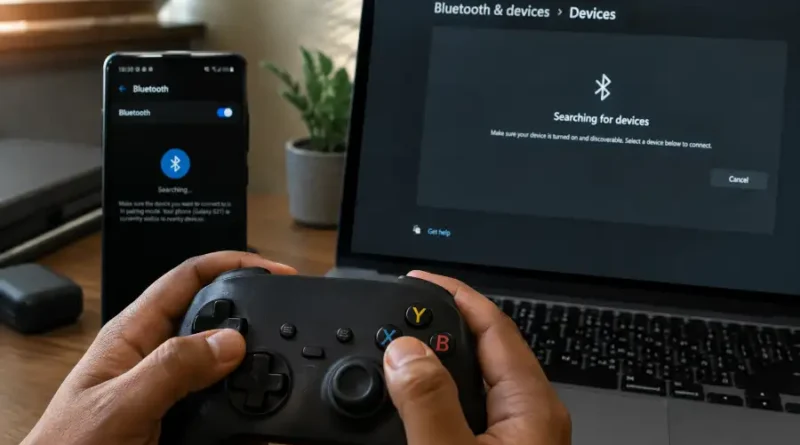
HSSGamepad Connects: Setup, Pairing, and Fix Guide
You just pulled your HSSGamepad out of the box, or maybe you have had it for weeks. Either way, right now it will not connect. The light keeps blinking. Your phone does not see it. Or it connected once and never again. That is annoying, and you just want to play.
Here is the good news. Almost every HSSGamepad connection problem comes down to one of a handful of causes, and most of them take less than five minutes to fix. This article walks you through how the HSSGamepad connects to different devices, what each connection mode does, and what to try when nothing seems to work.
Try This First: The 60-Second Quick Fix
Before you dig into settings menus, run through this short checklist. It solves the problem for most people right away.
- Charge the gamepad for at least 15 minutes. A low battery is the number one reason a controller refuses to pair.
- Turn the gamepad off completely, wait 10 seconds, then turn it back on in pairing mode.
- Make sure it is not already connected to another phone, laptop, or console. An HSSGamepad can only actively link to one device at a time.
- Move within three feet of the device you are pairing with. Distance causes more pairing failures than people expect.
- Restart Bluetooth on your device, not just the gamepad. Toggle it off, wait, then turn it back on.
If that fixes it, great, you are done. If not, keep reading. The rest of this guide covers what to check next.
The 3 Ways an HSSGamepad Connects to Any Device
The HSSGamepad is not limited to one type of connection. It supports three separate modes, and knowing the difference matters more than most people realize.
Bluetooth Connection
This is the simplest option. No cables, no extra parts. Your gamepad talks directly to your phone, tablet, or laptop through Bluetooth. It is the most convenient mode, but it can be slightly slower to respond than the other two, which matters if you play fast, competitive games.
2.4GHz Wireless Dongle
Some HSSGamepad models come with a small USB dongle. Plug it into your device and the gamepad connects to that dongle instead of using Bluetooth. This method is usually faster and more stable, with less chance of random interference from other wireless devices nearby.
USB Wired Connection
Plug the gamepad straight into your device with a cable. This gives you the fastest possible response time and zero wireless interference, since there is no wireless signal involved at all. It is the most reliable mode when a stable connection matters most.
So which one should you use? If you want convenience, choose Bluetooth. If you want speed and stability without wires, use the dongle. If you want the most reliable connection possible, go wired.
How to Connect HSSGamepad Step by Step
Setup looks a little different depending on your device. Here is what to do for each one.
Windows PC
- Open Settings, then go to Bluetooth and other devices.
- Click Add device, then select Bluetooth.
- Hold the pairing button on the gamepad until the light flashes quickly. This puts it in pairing mode.
- Select HSS Gamepad from the list that appears and click Connect.
- Wait for the light to stop flashing and stay solid or slow blinking. That means the connection succeeded.
If you are using the 2.4GHz dongle instead, plug it into a USB port directly on your PC rather than a hub, and the gamepad should connect automatically within a few seconds.
Android Phone or Tablet
- Go to Settings, then Connected Devices, then Pair New Device.
- Put the HSSGamepad into pairing mode by holding the power button until the light blinks fast.
- Tap HSS Gamepad when it shows up on the list.
- Once connected, open a game or a testing app to confirm the buttons respond correctly.
iPhone or iPad
- Open Settings and tap Bluetooth.
- Make sure Bluetooth is turned on.
- Put the gamepad into pairing mode.
- Tap HSS Gamepad under Other Devices, then wait for it to say Connected.
One thing worth knowing: not every game on iOS supports third party controllers, even if the connection itself works fine. If the gamepad connects but a specific game will not detect it, that is usually a limitation of the game, not the controller.
Mac
- Open System Settings, then Bluetooth.
- Put the HSSGamepad into pairing mode.
- Click Connect next to HSS Gamepad when it appears in the list.
- If macOS asks for a PIN, try 0000, or simply leave the field blank and press Enter.
Smart TV and Android TV Box
- Open the settings menu on your TV and find Remotes and Accessories, or Bluetooth.
- Select Add Accessory or Pair New Device.
- Put the gamepad in pairing mode and select it once it appears.
Smart TVs are usually the slowest devices to detect new Bluetooth accessories, so give it an extra ten to fifteen seconds before assuming it failed.
D-Input vs X-Input: The Setting Most Guides Skip
This part rarely gets explained clearly, but it can be the actual reason your gamepad connects fine yet does not work properly in a specific game.
Some HSSGamepad models let you switch between two input modes, usually with a small switch on the back or a button combo. D-Input is an older, more universal standard that works with most PC games and simple applications. X-Input is the newer standard that mimics an Xbox controller layout, and many modern PC games expect this mode specifically.
If your gamepad connects successfully but buttons feel mapped wrong, or the game does not recognize it as a controller at all, try switching between these two modes. It solves a surprising number of “connected but not working” problems that look like a pairing issue but are not.
A gamepad that connects but does not respond correctly is almost never a pairing problem. It is almost always an input mode problem.
Why Your HSSGamepad Won’t Connect (Real Fixes)
If the quick fix at the top of this guide did not solve things, one of these issues below is likely the cause.
Ghost Connections
If your gamepad worked before and suddenly stopped, your device may be holding onto old, corrupted pairing information. This is sometimes called a ghost connection. Go into your Bluetooth settings, find HSS Gamepad, select Forget or Remove, then pair it again from scratch. This fixes the problem more often than people expect.
One Device at a Time
An HSSGamepad can only stay actively connected to one device at once. If it was last paired to your tablet, it may try to reconnect there first, even while you are trying to pair it with your PC. Turn off Bluetooth on the other device, or unpair the gamepad from it first.
Outdated Bluetooth or Drivers
Older laptops and budget phones sometimes run outdated Bluetooth versions that do not communicate well with newer controllers. Check for a Windows update, or update your phone’s operating system, and the connection often becomes far more stable.
Cable and Port Problems
If you are using USB wired mode and the gamepad still will not connect, try a different cable first. A worn out or low quality cable is one of the most common wired connection failures, and it is easy to overlook because the cable can look completely fine on the outside. Also avoid USB hubs when possible, and plug directly into a port on your device.
Low Battery
This sounds obvious, but it causes more failed connections than almost anything else on this list. A gamepad running on a nearly dead battery may power on, show a light, and still fail to complete pairing. Always charge fully before troubleshooting anything else.
How to Know the Connection Is Working
A steady, non-blinking light usually means a successful connection, but the real test is response. Open a free controller testing app, or launch any game, and press every button and stick. If everything responds instantly with no delay, your HSSGamepad connects and works the way it should.
If some buttons respond and others do not, that points back to the input mode issue explained above, not a connection failure.
Keeping Your Connection Stable Long Term
Once your HSSGamepad connects properly, a few habits keep it that way.
- Charge it before the battery hits zero rather than after, since a full drain can sometimes reset pairing data.
- Keep it within a reasonable distance of your device during gameplay, especially in Bluetooth mode.
- Avoid placing the 2.4GHz dongle near other wireless devices like routers or other USB dongles, since interference can cause random drops.
- Check for firmware updates every so often if your model supports them, since manufacturers often quietly fix connection bugs this way.
Frequently Asked Questions
Why does my HSSGamepad connect but not work in games?
This usually means the input mode does not match what the game expects. Try switching between D-Input and X-Input, then test again.
Can I use Bluetooth and the USB dongle at the same time?
No. The gamepad can only use one connection mode at a time. Choose the mode that fits your setup and stick with it for that session.
Why does my HSSGamepad disconnect randomly during gameplay?
Low battery, distance from the device, and wireless interference are the three most common causes. Switching to the wired USB mode almost always eliminates this issue completely.
Does the HSSGamepad work on iPhone?
Yes, it connects through Bluetooth like any other device. Just remember that not every app or game on iOS supports third party controllers, even when the connection itself is working fine.
How do I put my HSSGamepad into pairing mode?
Hold the power button down until the light starts blinking quickly. This usually takes a few seconds longer than simply turning the gamepad on.
Final Thoughts
Most HSSGamepad connection problems are not hardware problems. They come down to battery level, the wrong input mode, or old pairing data that needs to be cleared out. Work through the steps in this guide in order, and your gamepad should connect smoothly on whatever device you are using, whether that is a phone, a PC, or your TV across the room.
Visit the rest of the site for more interesting and useful articles.
