
![How to Use AI to Enhance Photos [Step-by-Step Guide]](https://digitalbusinesstime.com/wp-content/uploads/2025/12/How-to-Use-AI-to-Enhance-Photos-Step-by-Step-Guide-800x445.webp)
How to Use AI to Enhance Photos [Step-by-Step Guide]
You can run into quality issues even with a well-taken photo. Slight softness, low resolution, or muted detail can make the whole picture feel less sharp. Traditionally, correcting this meant relying on desktop editing tools—great if you’re trained, frustrating if you’re not.
AI tools have made this process far simpler. With an AI-enhanced photo system, you can take a picture that feels slightly off and rebuild clarity, texture, and resolution in one quick pass. No technical setup, no manual adjustments. Just upload the file and let the model do the work.
In this article, we’ll take a closer look at how Media.io Image Enhancer approaches online photo enhancement. The platform keeps the process simple and practical—whether you’re trying to repair a blurry shot, prepping images for a project, or tidying up photos you just want to hold onto.
What Is AI Photo Enhancement?
AI photo enhancement combines visual recognition with reconstruction. The model studies patterns—faces, edges, color transitions, noise—and fills in the missing information that a camera didn’t capture clearly.
A strong AI image quality enhancer can do quite a bit:
- act as an image upscaler for low-resolution files
- sharpen image areas affected by motion or focus issues
- remove digital noise and smoothing
- fix lighting or tonal imbalance
- improve clarity in photos that look “soft” or compressed
One interesting part of this technology is what AI can read in a blurry picture. Even when your eye sees only vague shapes, the model identifies structure, contrast patterns, and expected detail from similar images it has learned from. It can then reconstruct those areas with surprising accuracy.
And all you’re doing is uploading the photo—no sliders, no masks, no manual retouching.
Why Media.io Is a Strong Choice for AI Photo Enhancement
WonderShare Media.io doesn’t treat enhancement as a standalone feature. It’s part of a larger ecosystem powered by multimodal AI models, which means you can refine, repurpose, and build on your photos in ways that go beyond a simple fix.
Here’s what makes it especially useful:
1. Task-Specific Enhancement Models
Instead of one generic filter, Media.io uses different models optimized for different problems:
- one for clarity and detail recovery
- one for portraits
- one for noise removal
- one for resolution upscaling
Because of this, you get results that look intentional rather than “over-sharpened,” which is a common issue with basic enhancers.
2. A Platform Designed for Creative Continuity
Once you’re finished using a picture for AI to enhance, you can immediately:
- place it into video templates
- generate additional visuals through image-to-image AI
- animate portraits using AI avatars
- design layouts using over 5000 templates
Your enhanced photo becomes a building block instead of an isolated file.
3. Large-Model Intelligence Across the Workspace
Media.io isn’t limited to image tools. The platform runs multiple large AI models for video, audio, and avatar generation. This “shared intelligence” helps the enhancer interpret color, texture, and structure in a more accurate way than single-model systems.
4. A Shortcut to Style Exploration
Explore offers a quick way to test styles without guessing. Browse user-generated content, open something that fits your vibe, and generate a similar video in a click. As new visual trends take off, they’re grouped into themed areas so you can create in line with what’s popular.
5. Free Daily Credits for Logged-In Users
Enhancement, upscaling, and other tools can be used with free daily credits, making it easy to test multiple images before committing to a paid plan.
How to Enhance a Photo with Media.io (3-Step Tutorial)
The process is clean and uncomplicated. Here’s the workflow:
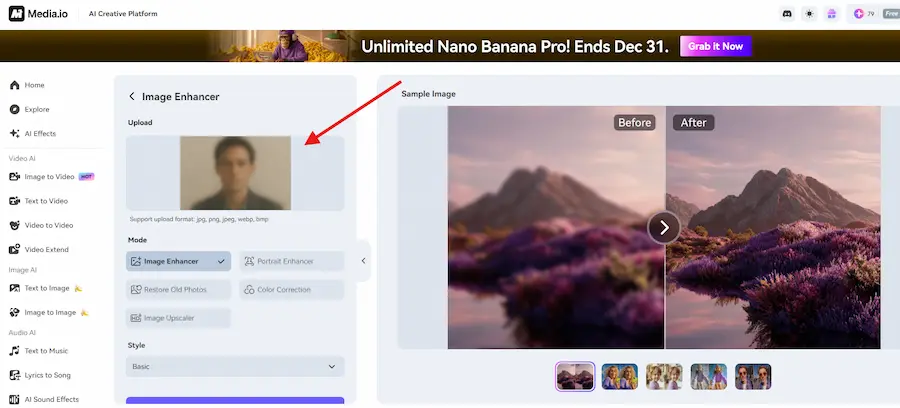
Step 1. Upload Your Photo
Drop your photo into the uploader or click to select a file. Media.io accepts JPG, PNG, JPEG, BMP, and WEBP formats, so nearly any image works.
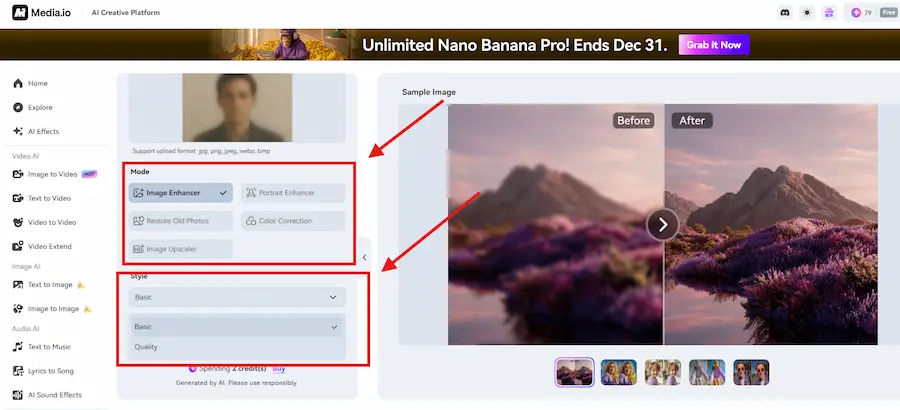
Step 2. Pick the Enhancement Mode
Choose the mode that matches your issue:
- Image Enhancer for general clarity
- Portrait Enhancer for facial detail
- Restore Old Photos for scans or damaged pictures
- Color Correction for lighting issues
Image Upscaler for resolution boosts
You can keep the default style or adjust it depending on how much reconstruction your image needs.
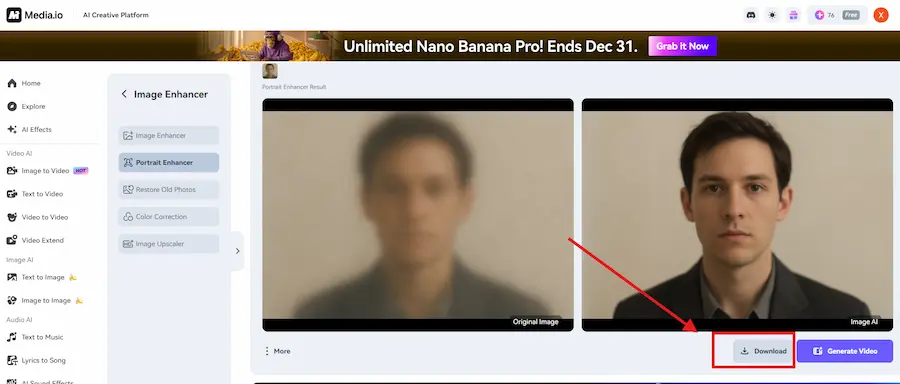
Step 3. Generate and Download
Click Generate, let the AI process the file, and compare the before/after preview. If the enhanced result looks right, download it in high resolution. You can run another mode if you want to compare different improvements.
What Can You Fix Using AI-Enhanced Photo Tools?
AI enhancement is useful in more situations than most people expect. Here are some common ones:
Unclear or Blurry Photos
Photos taken in motion, low light, or on older devices often lack crispness. AI reconstruction can identify the underlying structure and correct blur far better than manual tools. It’s especially helpful when the original is important but just slightly off.
Low-Resolution Images That Need Upscaling
If you’ve ever blown up a photo only to watch it turn soft and pixelated, you’re not alone. That’s exactly where an image upscaler comes in. The AI rebuilds the missing detail, letting the picture hold its sharpness even at larger sizes—perfect for prints, presentations, or product photos.
Personal and Creative Projects
Social media posts, thumbnails, travel albums, concept designs—small improvements go a long way. A quick enhancement can make a photo feel intentional, not hurried.
FAQs About AI Photo Enhancement
Is Media.io an AI photo enhancer free tool?
Yes—logged-in users receive daily credits.
Can AI read a blurry picture accurately?
Often, yes. The model recognizes patterns and reconstructs detail based on what it predicts should be there.
Does enhancement damage the original photo?
No. Media.io keeps your original and generates a new, improved version.
Is batch enhancement available?
Yes, depending on your subscription level.
Final Thoughts
Photo enhancement used to belong mostly to people fluent in editing tools. Today, AI has made it far more accessible—more like a quick adjustment than a full editing session. A previously blurry or undersized image can often be restored to something clean enough to publish or reuse.
Media.io adds to that by offering an environment where enhancement isn’t the final step. Once the image is improved, you can rework it, animate it, style it, or place it into a design. It’s a unified space for turning a single repaired photo into a full creative asset.
Visit the rest of the site for more interesting and useful articles.
