
RVE RSMB 6.6.1 OFX: Best Motion Blur Plugin for Video Editors
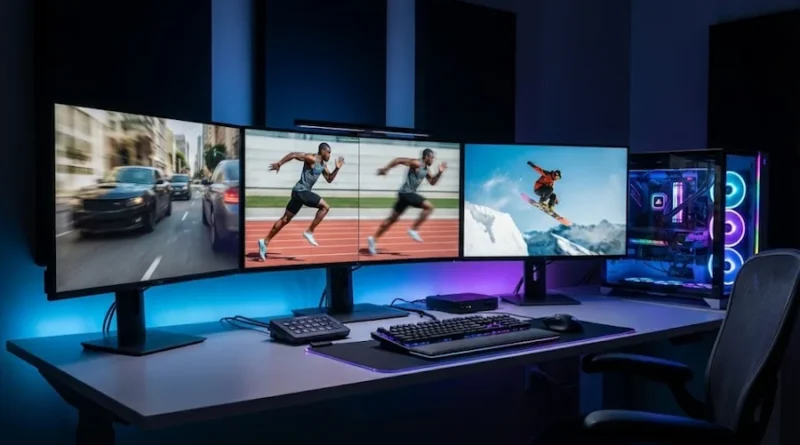
Have you ever watched a movie and thought, “Wow, that action scene looks so smooth and real!” That smooth, cinematic look often comes from motion blur. And if you want to add that same professional look to your videos, you need the right tool.
Enter RVE RSMB 6.6.1 OFX, the most popular motion blur plugin used by video editors and VFX artists around the world. In this blog post, I will show you what this plugin does, how to use it, and whether it’s right for you. Let’s get started!
What is RVE RSMB 6.6.1 OFX?
Let me break this down in simple words:
RVE stands for RE:Vision Effects, the company that makes this plugin.
RSMB stands for ReelSmart Motion Blur, the name of the plugin.
6.6.1 is the latest version number.
OFX stands for OpenFX, a plugin format that works with many video editing programs like DaVinci Resolve, Vegas Pro, and more.
In simple terms, RSMB automatically adds realistic motion blur to your videos. It tracks every single pixel in your footage and adds the perfect amount of blur. No manual work needed!
Why Do You Need Motion Blur?
Think about it this way. When you watch a video shot at high speed (like action scenes or sports), it can look choppy or “stuttery.” This happens because fast-moving objects don’t have natural blur.
Motion blur fixes this problem. It makes fast movements look smooth and natural, just like in Hollywood movies. You will need motion blur for:
- Action scenes that look too sharp or choppy
- Footage shot with a fast shutter speed
- 3D animations and motion graphics
- Stop-motion videos
- Green screen footage
- Any video that needs a cinematic look
Key Features of RSMB 6.6.1 OFX
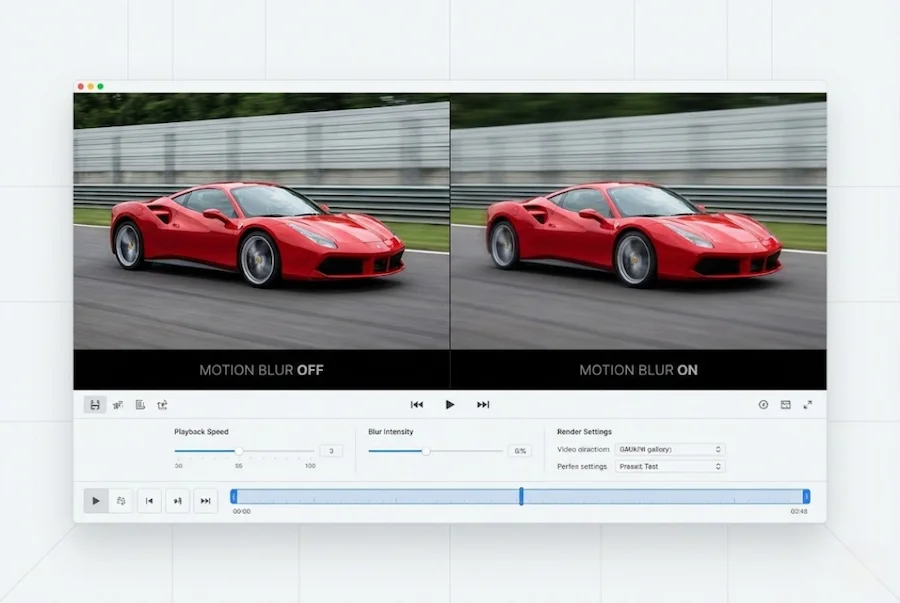
RSMB is packed with powerful features. Let me explain each one in simple terms:
1. Automatic Pixel Tracking
This is the magic behind RSMB. The plugin automatically tracks every single pixel in your video from one frame to the next. It figures out how things are moving and adds the right blur. You don’t need to do anything manually!
2. Adjustable Blur Amount
You have full control. Want more blur? Slide it up. Want less blur? Slide it down. RSMB lets you add exactly the amount of motion blur you need, from subtle to dramatic.
3. Motion Blur Removal
Yes, you read that right! RSMB can also remove motion blur from footage. This is super helpful when you want to sharpen blurry action shots.
4. 360° VR Video Support
Working with VR or 360-degree videos? RSMB has you covered. It properly blurs 360 footage by understanding how the edges connect, so you won’t see ugly seams or weird artifacts.
5. Object Separation
Sometimes you want to blur the background differently than the foreground. RSMB can separate objects using a matte (like a mask). This gives you precise control over what gets blurred and what doesn’t.
6. 3D Motion Vector Input
If you work with 3D software like Cinema 4D, Maya, or Blender, you can import motion vectors directly into RSMB. This gives you even more accurate blur for your 3D renders.
7. Track Point Guidance
Sometimes the automatic tracking needs a little help. You can add up to 12 tracking points to guide RSMB exactly where to track. This is perfect for tricky shots.
8. GPU Acceleration
RSMB uses your graphics card (GPU) to process videos faster. This means less waiting and more creating. It even supports multiple GPUs if you have them!
9. RGB+A Tracking
This feature uses the alpha channel (transparency information) to help track dark images. It’s especially useful for CGI footage, masked clips, and keyed material.
Who Should Use RSMB 6.6.1 OFX?
RSMB is perfect for:
- Video Editors who want to make their edits look more professional and cinematic
- VFX Artists who want to add realistic motion blur to visual effects
- YouTubers who want to give their videos a Hollywood-quality look
- Filmmakers who need to fix footage shot with wrong shutter settings
- Motion Graphics Designers who want to add blur to animations
- Colorists who want to improve footage during color grading
- Stop-Motion Animators who want to make stop-motion look smooth
Supported Video Editing Software
The OFX version of RSMB works with these programs:
- DaVinci Resolve (version 11 and up)
- Vegas Pro (64-bit, version 10 and up)
- Nuke (version 5.1 and up)
- Fusion Studio (version 18.5 and up)
- HitFilm (version 3.0 and up)
- Natron (version 1 and up)
- Scratch (version 4 and up)
- Nucoda (version 2014 and up)
- Catalyst Edit (version 2015 and up)
- Silhouette (version 6.1.3 and up)
- Baselight (version 6.0 and up)
- Autodesk Flame
Note: RSMB is also available for After Effects and Premiere Pro, but those use the Adobe plugin format, not OFX.
System Requirements
Before you install RSMB, make sure your computer meets these requirements:
| Component | Requirement |
|---|---|
| Operating System | Windows 10/11 (64-bit) or macOS 10.14+ |
| GPU (for acceleration) | OpenCL 1.1 compatible graphics card |
| RAM | 8 GB minimum (16 GB recommended) |
| Host Software | Any OFX-compatible host (see list above) |
How to Install RSMB 6.6.1 OFX
Installing RSMB is easy. Just follow these steps:
- Download the installer from the official RE:Vision Effects website (revisionfx.com)
- Run the installer and follow the on-screen instructions
- Choose your host application (DaVinci Resolve, Vegas Pro, etc.)
- Enter your license key if you purchased a license (or use the free demo with watermark)
- Restart your video editing software
- Find RSMB in your effects panel under “RE:Vision Effects” or “OFX”
Tip: You can try the free demo before buying. The demo version adds a watermark to your video, but all features work perfectly.
How to Use RSMB (Quick Start)

Using RSMB is super simple. Follow this basic workflow:
Step 1: Apply the Effect
Find “RSMB” or “ReelSmart Motion Blur” in your effects panel. Drag and drop it onto your video clip.
Step 2: Adjust Blur Amount
The main slider you’ll use is “Blur Amount”. Start with a value around 0.5 to 1.0 and adjust based on what looks good.
Step 3: Preview and Render
Play back your video to see the motion blur in action. Once you’re happy, render your final video!
That’s it! For most videos, RSMB’s automatic tracking does all the work. You can check out the extra settings later as you get more comfortable.
RSMB 6.6.1 OFX Pricing
RSMB comes in two versions:
| Version | Price (Approx.) | Best For |
|---|---|---|
| RSMB Regular | $89 – $149 | Most users |
| RSMB Pro | $189 – $299 | VFX professionals |
Pro version includes: Object separation, 3D motion vector input, track point guidance, and spline guidance. These are mostly for VFX work.
For most video editors and YouTubers, the Regular version is more than enough. Only upgrade to Pro if you work with complex VFX shots.
Pros and Cons of RSMB 6.6.1 OFX
Pros (What I Love)
- Automatic tracking means no manual work needed
- Trusted by professionals and used worldwide
- GPU accelerated for fast rendering
- Works with many programs like DaVinci Resolve, Vegas Pro, Nuke, etc.
- 360° VR support which is great for VR content creators
- Can remove blur too to sharpen blurry footage
- Free demo available so you can try before you buy
Cons (What Could Be Better)
- Price can be expensive for beginners
- Learning curve because some features take time to learn
- Some features are host-dependent meaning not all features work in all programs
Best Alternatives to RSMB
If RSMB is not right for you, here are some other options:
- Pixel Motion Blur (After Effects) is included in After Effects, free but less powerful
- Motion Blur (DaVinci Resolve) is a basic option that comes with the software
- Boris FX Sapphire Blur is part of a larger plugin suite, more expensive
- Red Giant Motion Blur is good quality but more limited
My verdict: RSMB remains the best dedicated motion blur plugin. The other options are either less powerful or part of expensive bundles.
FAQs
Is RSMB worth the money?
Yes, if you regularly need motion blur for professional work. The time it saves and quality it delivers makes it worth every penny. For hobbyists, try the free demo first.
Can I use RSMB with DaVinci Resolve Free?
Yes! RSMB OFX works with both the free and paid versions of DaVinci Resolve.
Does RSMB work on Mac M1/M2 chips?
Yes! Version 6.6.1 includes Apple Silicon (M1/M2) support.
What’s the difference between Regular and Pro?
Pro adds object separation, 3D motion vectors, track points, and spline guidance. Regular version handles most basic to intermediate motion blur needs.
Can I use one license on multiple computers?
A single license is tied to one machine. For multiple computers, you need additional licenses or a floating license.
Does RSMB slow down my rendering?
RSMB does add rendering time since it analyzes every pixel. But GPU acceleration makes it much faster than doing motion blur manually.
Conclusion
RVE RSMB 6.6.1 OFX is the gold standard for motion blur plugins. Whether you’re a YouTuber wanting that cinematic look, a filmmaker fixing shutter issues, or a VFX artist working on complex shots, RSMB delivers.
The automatic pixel tracking saves hours of manual work. The results look natural and professional. And with GPU acceleration, rendering is fast.
My recommendation: Download the free demo and try it yourself. Once you see what RSMB can do, you’ll understand why it’s been the favorite tool for years.
Ready to give your videos that Hollywood motion blur? Try RSMB today!
Disclaimer: This article is for informational purposes only. Always download software from official sources. Prices may vary based on region and promotions. Check the official RE:Vision Effects website for current pricing and compatibility information.
Visit the rest of the site for more interesting and useful articles.
